
How Batchkeeper works
You’ll find Batchkeeper nested under WooCommerce in your WordPress sidebar, split into four sections.
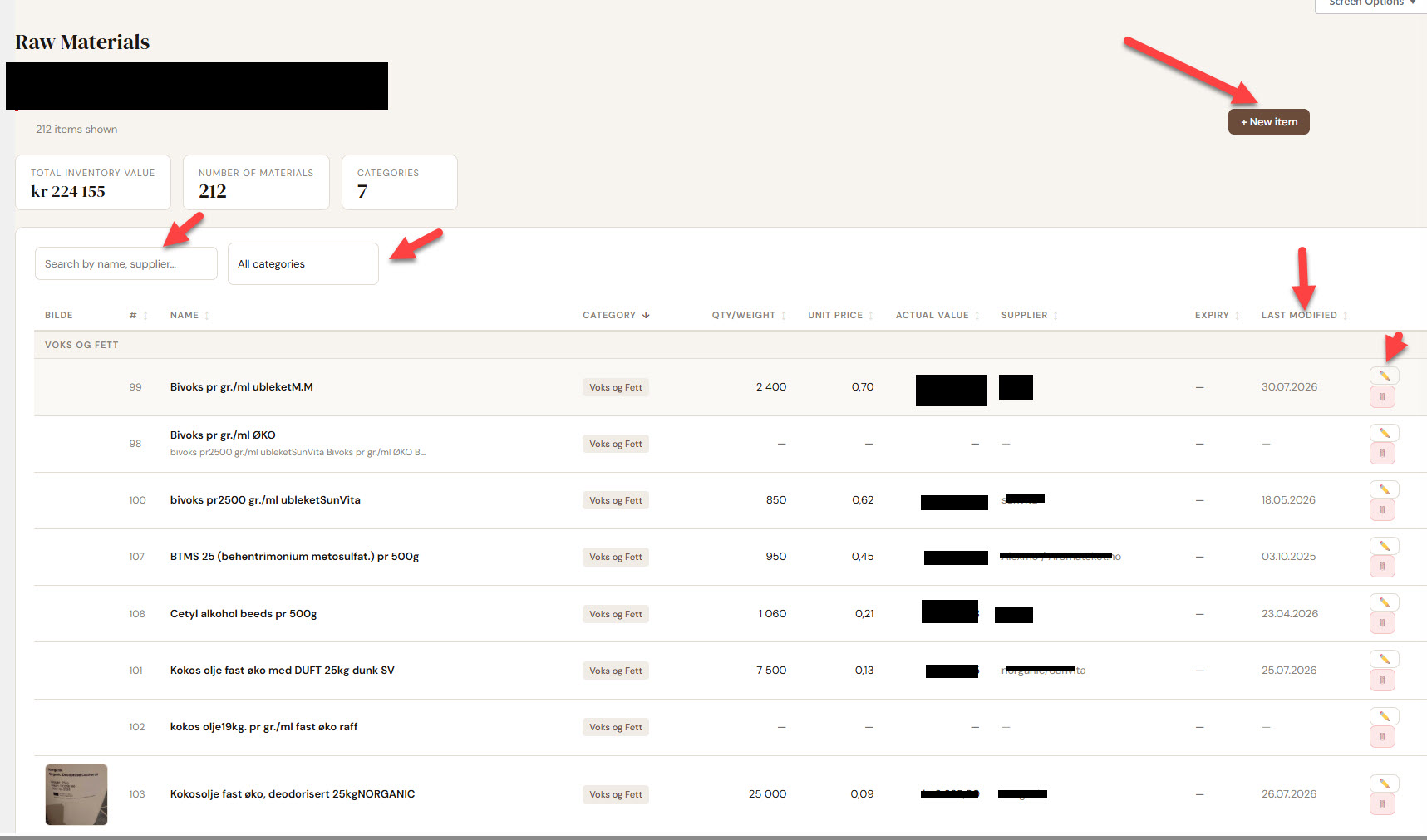
Raw Materials 01
Everything you buy to make your products lives here — name, category, cost, how much you’ve got on hand.
- Three numbers at the top update as you go: total inventory value, how many materials you’ve got, and how many categories.
- The table lists everything with its category, quantity, price, supplier and expiry date. Search by name or supplier, or narrow it down by category.
- Want to know where a raw material is actually used? Each item shows which recipes call for it.
- Running low on something? It gets flagged automatically once it drops below the threshold you’ve set.
- Thumbnails are clickable if you want the full-size photo.
Production 02
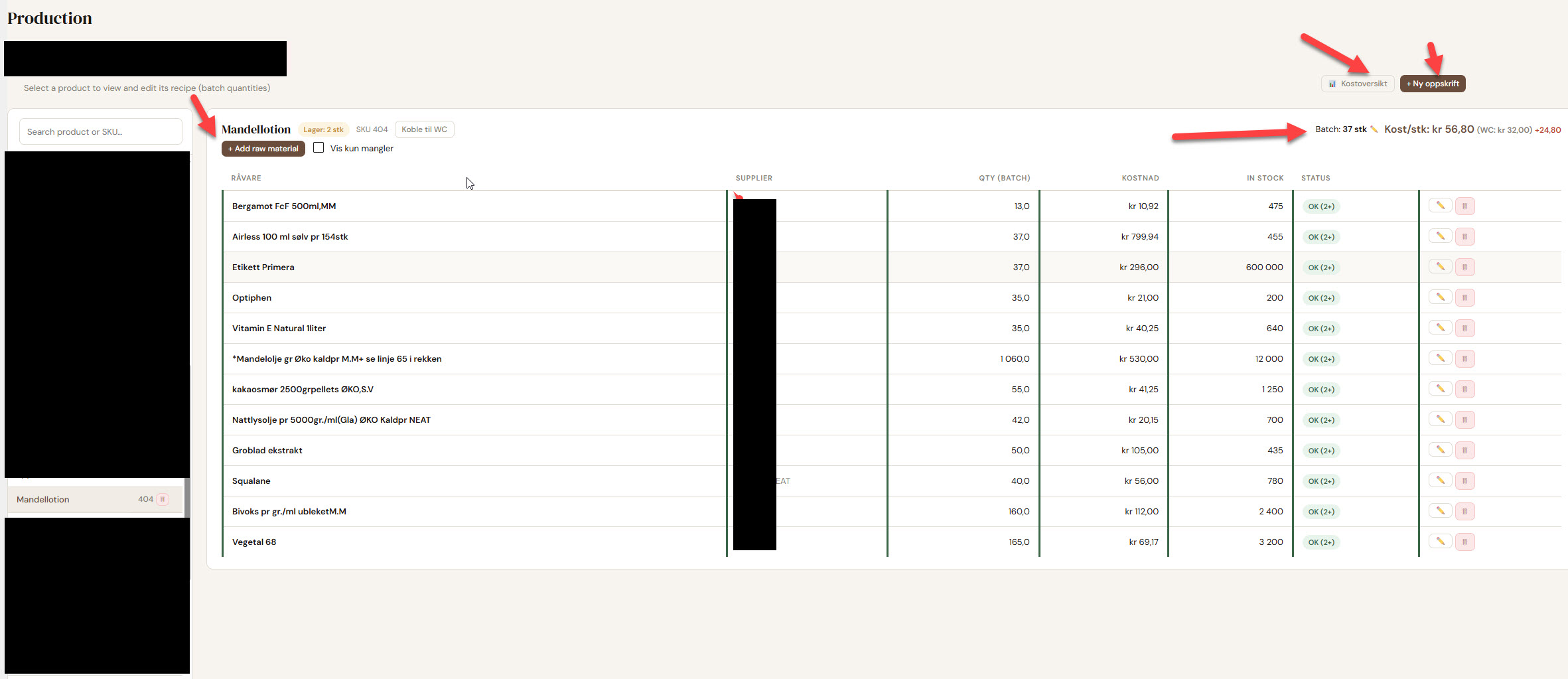
This is where you tell Batchkeeper what actually goes into each product.
- Add the raw materials a recipe needs, with exact quantities, and link it to the matching product in your WooCommerce store.
- You’ll also set Batch Size: how many finished products one production run makes. One batch of lotion filling 50 bottles means Batch Size is 50.
- Got a lot of recipes to set up? Import them in bulk from a CSV file instead of typing each one in by hand.
Batch Size isn’t just a number for the record — it’s what Batchkeeper uses to work out what one unit actually costs. It adds up what the ingredients cost in total, then divides that by Batch Size. A recipe costing 500 kr with a Batch Size of 50 means each unit costs 10 kr to make.
Worth getting right, because it moves the number both ways: set it too low and a unit looks pricier than it is; too high, and it looks cheaper than it is, which can mean you’re quietly selling below cost. Leave it blank and there’s no cost shown at all.
WooCommerce itself has no built-in cost/purchase-price field, so Batchkeeper doesn’t depend on one — it only needs WooCommerce. If you separately use a cost-of-goods plugin such as Cost of Goods for WooCommerce, a Cost overview button appears automatically, comparing Batchkeeper’s calculated cost against that plugin’s stored purchase cost. No such plugin, no button — nothing to compare against.
The Status column shows, ingredient by ingredient, how many more batches your current stock can cover:
- OK (2+) — plenty in stock, good for 2 or more batches.
- 1 batch — enough for one more, then you’re out.
- Missing — not even enough for a single batch.
- Not found — this ingredient’s name doesn’t match anything in Raw Materials. Delete it and re-add it from the search list.
Each ingredient is checked separately, so it’s worth scanning for the worst one on the list. That’s your actual limit right now, no matter how well-stocked everything else is.
Sales Statistics 03
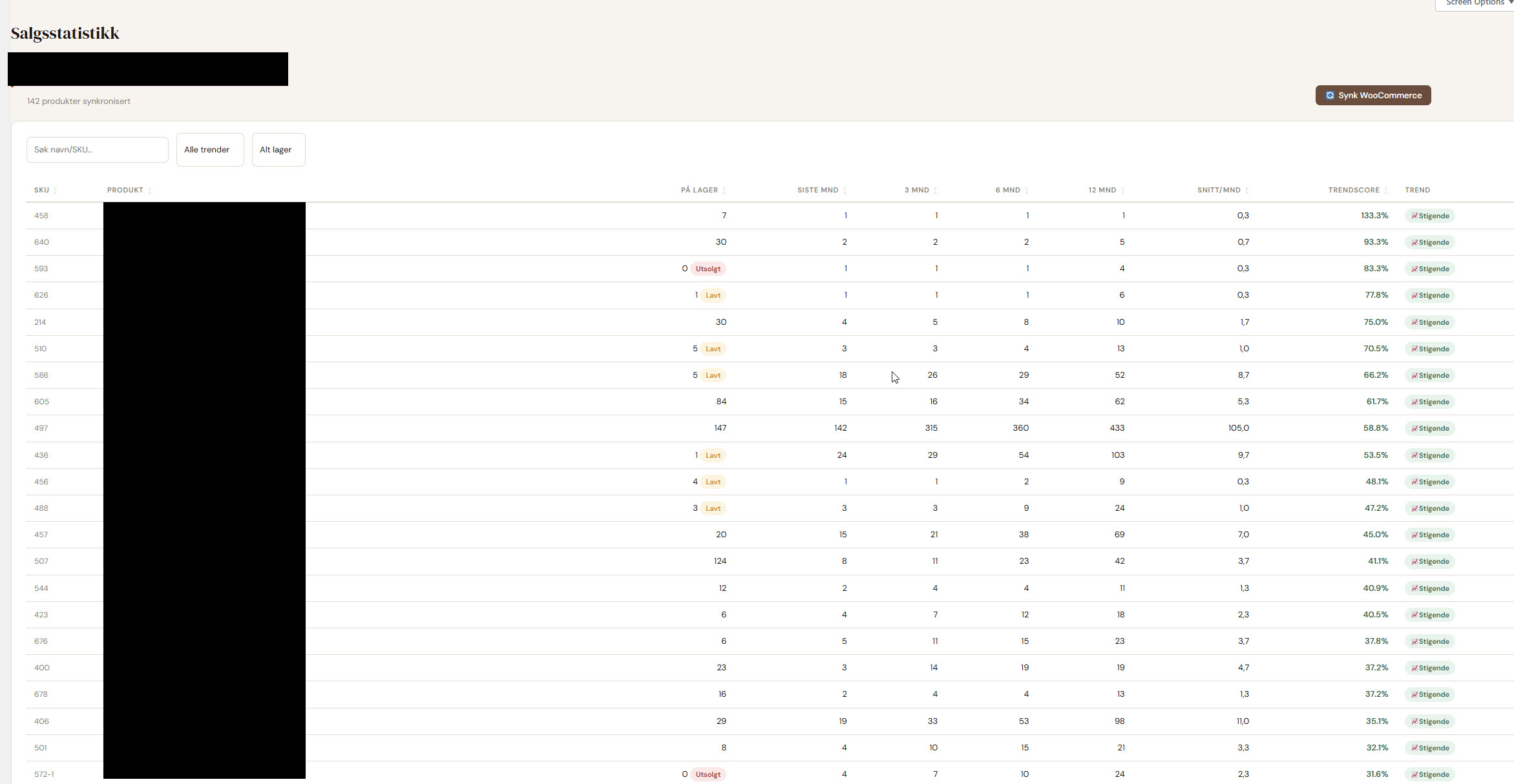
See how your products are actually doing, pulled straight from your WooCommerce sales.
- Stock status: sold out, low, or OK. Same idea as Raw Materials, just for finished goods this time.
- Which way is each product trending — up, down, or holding steady?
- How much sold in the last month, 3, 6 and 12 months, plus a monthly average.
- One button re-syncs everything from your WooCommerce orders.
Settings 04
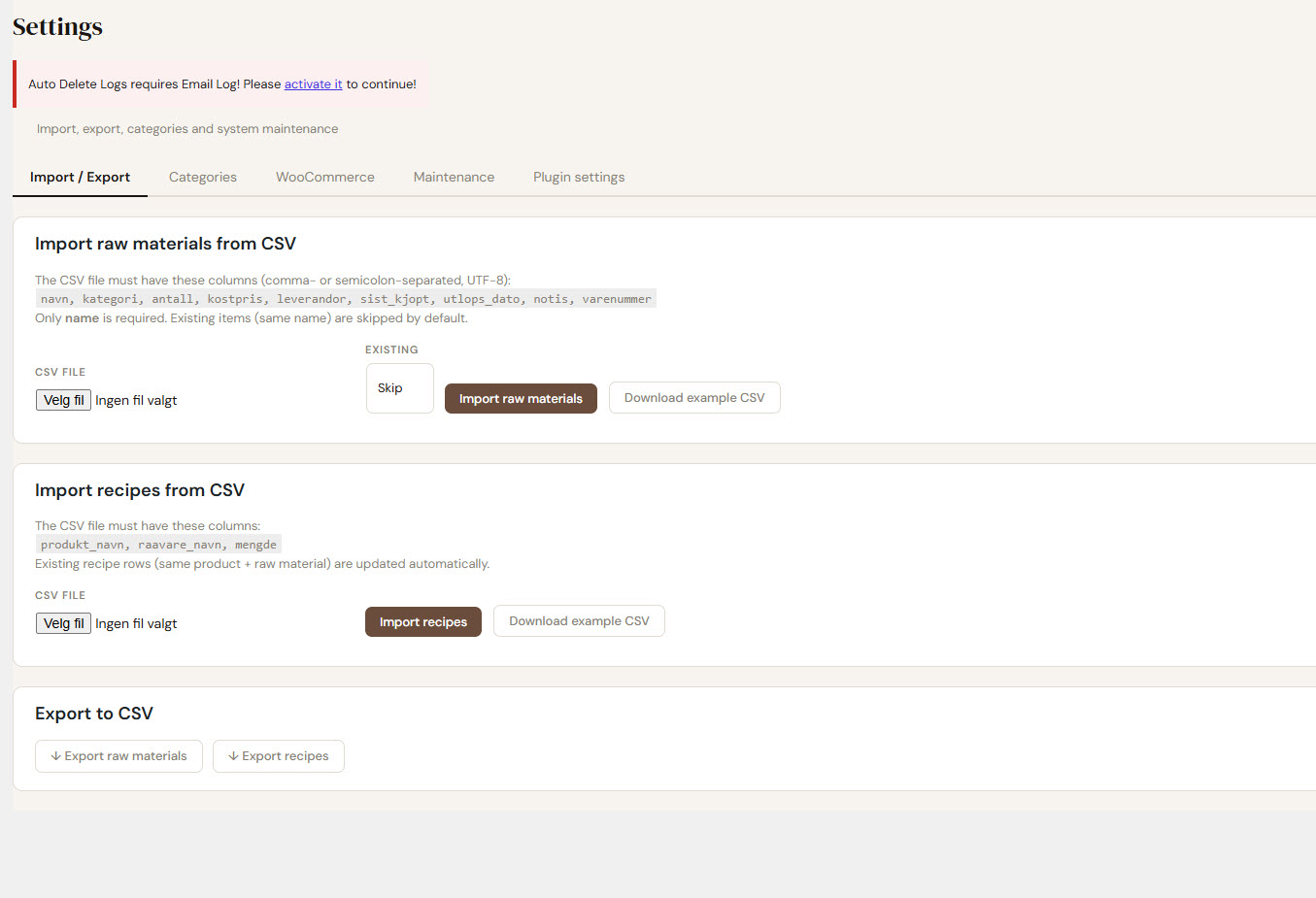
Five tabs cover setup and the odd bit of housekeeping.
- Import / Export — bring in raw materials or recipes in bulk from a CSV file, or export what’s already there. Example files show the format to follow.
- Categories — add, rename or merge them. Renaming one updates every raw material using it, so nothing gets lost along the way.
- WooCommerce — a quick look at how many products are linked and how many still need a recipe, plus a way to refresh product names in bulk.
- Maintenance — two small cleanup tools: tidy up messy names, and find recipes pointing at a raw material that no longer exists.
- Plugin settings — currency, your default unit (g/ml/pcs), and the low-stock threshold used everywhere else in the plugin.
- WordPress — latest two major versions recommended
- WooCommerce — latest two major versions recommended
- PHP 7.4 or later